
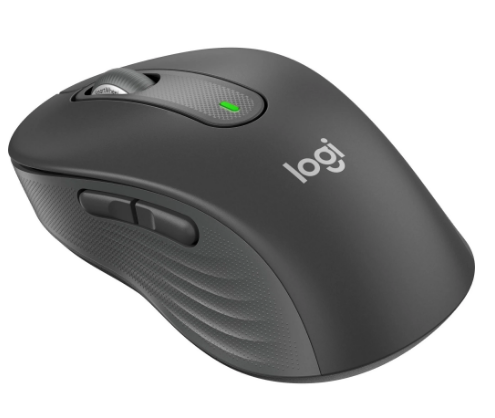
I recently ran into a frustrating issue with my Logitech Signature M650 wireless mouse after pairing it to my work laptop over Bluetooth (BT), my dongle connection through the docking station stopped behaving the way I expected.
I mean I know the receiver would not work because it has been paired via BT when I came back to my desk, but reconnecting it was not as straightforward as I thought. Logitech’s Signature M650 supports both Bluetooth Low Energy and the Logi Bolt receiver, and Logitech’s support pages also note that the mouse can be paired through either path depending on your setup.

What happened
My usual setup is simple: the USB receiver stays plugged into the docking station, and the mouse works normally at my desk. If I switched from personal Mac laptop to work laptop (Mac too) it will just work straight.
But when I moved away from the dock, I paired the mouse directly to my work laptop using Bluetooth. When I returned, I removed the BT connection from my work laptop and re-paired the dongle connection to take over again, but it did not reconnect cleanly.
I tried using Logi Options+ first because that is the app many search results recommend, but it did not solve the problem.
If you pair it via BT from one laptop, then pair it with another laptop, and if they are on the same range it will not work that is why I need to use the dongle receiver via docking station.
What I tried
After a bit more searching, I found a few ways to get the mouse and receiver talking again. These are the main options I came across, and they are useful depending on the type of Logitech receiver you have and the operating system you are using.
Option 1: Web-based pairing
If you have a modern Logitech receiver such as Unifying or Bolt, you can use Logitech’s browser-based pairing flow instead of installing a full app. The basic idea is to plug in the receiver, open the pairing tool in your browser, choose the receiver, then put the mouse into pairing mode by turning it off and back on.
Use Chome and paste -> https://logiwebconnect.com/ click Continue

Click Select a Receiver

Once Receiver is paired, add a device (so this will be your mouse) and follow the instructions (clicking the left/right button)
Paired successfully!

Option 2: Standalone connection utility
Logitech also provides a lightweight connection utility for some older devices. This route is simpler than installing a larger software suite, and Logitech’s support documents still reference legacy connection tools even though they are no longer actively maintained.
Works with Windows only https://support.logi.com/hc/en-us/articles/360025141574-Logitech-Connection-Utility
Option 3: Bluetooth only
Since the Signature M650 supports Bluetooth Low Energy, you can skip the dongle entirely and pair it straight to your computer. Logitech’s setup guide says to turn the mouse on, hold the connect button until the light blinks, then pair it through your system Bluetooth settings.
The fix that worked
Option 1 worked best for me. The browser-based pairing approach was the one that finally got my Logitech receiver working again without forcing me to rely on Logi Options+. That was the big lesson here: sometimes the most effective fix is not the most obvious one.
Practical tips
If you run into the same problem, these are the things I would try first:
- Confirm whether your mouse is paired to Bluetooth or to the receiver.
- Make sure the receiver is connected directly and is recognized by the computer or dock.
- Try Logitech’s browser-based pairing flow before installing extra software.
- If you do not need the receiver, Bluetooth is a clean backup option for the Signature M650.
Final takeaway
My main takeaway is simple: the Logitech Signature M650 is flexible, but that flexibility can create confusion when you move between Bluetooth and receiver-based use. For me, the dongle reconnect issue was solved by using the web-based pairing option, not Logi Options+. If you use the same mouse on a dock at one moment and Bluetooth on a laptop the next, it is worth knowing all three recovery paths before the frustration starts.
Useful references: Logitech’s Signature M650 getting started guide, Logitech’s Bluetooth setup guide, and Logitech’s Unifying receiver setup page.
Leave a Reply