JKM Tech Notes

IT notes, tools, and practical how-tos for Atlassian and everyday tech.

  • 🚀 Teamwork Collection vs Service Collection: Which Atlassian Bundle Fits Your Team?

    Atlassian’s Teamwork and Service Collections are game-changers for collaboration and support, but they’re tailored for different needs.

    Let’s break it down based on my hands-on experience. I originally selected Service Management Collection, however, I also want to try the Teamwork collection so I selected both.

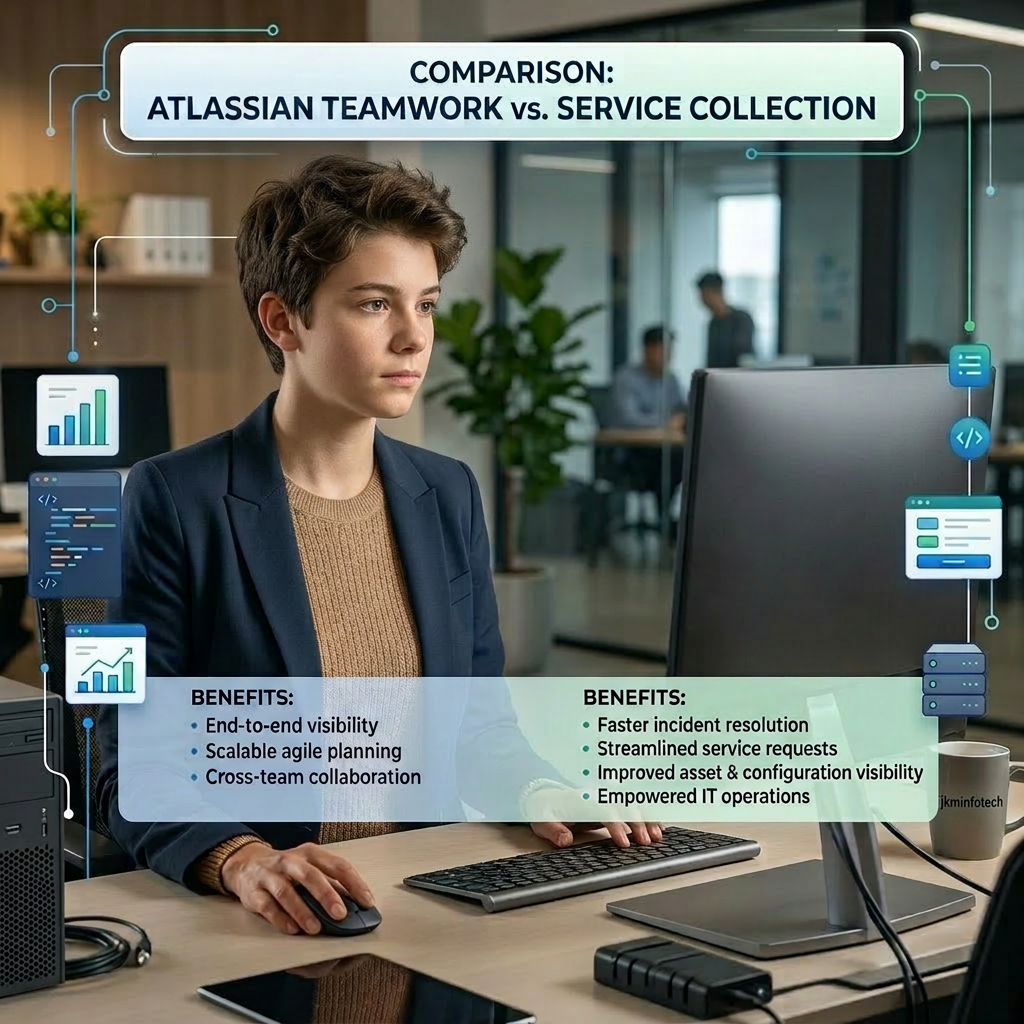
    Teamwork Collection bundles Jira, Confluence, Loom, and Rovo AI agents to supercharge everyday teamwork from planning projects to sharing async videos and tapping AI for insights. In one deployment, it cut meeting time by embedding Loom clips directly into Confluence pages, keeping everyone aligned without endless Zooms. Perfect for cross-functional squads in marketing, product, or dev. Check the official licensing page for pricing tiers (Free for 10 users, Standard, Premium, Enterprise).

    Service Collection packs Jira Service Management (JSM), Customer Service Management (CSM), Assets, and Rovo agents for handling internal IT requests and external customer support in one AI-powered hub. It is good to streamline ticket triage for a client mostly. It also assets mapped dependencies visually, slashing resolution times. No more siloed tools, it’s built for service desks. Dive into details on Atlassian’s Service page.

    Here’s a quick table from my testing notes, highlighting key differences:

    FeatureTeamwork CollectionService Collection
    Core AppsJira, Confluence, Loom, Rovo (teamwork) JSM, CSM, Assets, Rovo (service)
    Best ForProject planning, docs, async comms IT/HR support, customer tickets
    AI FocusIdea gen, search, meeting notes Ticket triage, incident response
    Cloud Only✅ Yes ✅ Yes
    Free TierUp to 10 users Up to 3 agents
    Pricing StartsUse calculatorAgents from Standard; Assets extra

    Go Teamwork if your team’s building and collaborating daily like dev team using Jira boards embedded in Confluence.

    Choose the Service when support volumes spike like IT/HR support tickets, CSM integrated with JSM handled a client’s surge effortlessly.

    You can start with trials via Atlassian Admin Hub many orgs mix them for full coverage just what I did then you can decide.


  • 🤖 What is AI? A simple guide from my personal experience 🔍

    Because I have been using AI tools like ChatGPT and Perplexity let’s talk about it on this post. After years of tinkering with tech in real-world projects I have seen AI go from a buzzword to a daily helper. If you’ve ever asked me why I love tools like Perplexity or ChatGPT, it’s because they make complex tasks simple. In this post, I’ll break down what AI really is, the apps we all use, their upsides and downsides, and even the costs based from my hands-on perspective.

    What AI Means (No Jargon!)

    AI, or Artificial Intelligence, is basically software that mimics human smarts like learning, reasoning, and solving problems. Think of it as a super-smart assistant, it reads tons of data, spots patterns, and helps with answers or ideas.

    AI is like a really smart librarian who never sleeps. You ask a question, and it quickly flips through millions of books (data) to give you the best answer, summary, or idea – without getting tired.


    • Like Google on steroids: Tells you not just links, but full explanations.
    • Your helpful friend: Writes emails, plans trips, or fixes simple code for you.
    • Magic recipe book: Suggests dinner ideas from what’s in your fridge.


    It’s software trained on huge info piles to “think” a bit like us, but way faster for routine stuff.

    Everyday AI Apps You Probably Use

    We interact with AI more than we think! Here are the ones I rely on:

    • Perplexity AI: Great for quick, cited research and web searches. I use it daily for my personal research, study and my blog!
    • ChatGPT by OpenAI: Perfect for writing emails, brainstorming ideas, or explaining tech simply.
    • Claude by Anthropic: Excellent for coding, complex reasoning, and safe, ethical responses.
    • Other favorites: Google Gemini for quick facts, or Microsoft Copilot for Office tasks.

    AI has been a game-changer for me. Here’s why:
    • Speed boost 🚀: Summarizes long docs in seconds.
    • Productivity magic: Reads my emails and helps me organize. I help friends too if they have some queries.
    • Always on: 24/7 access, no coffee breaks needed.
    • Learning aid: Explains tough concepts simply, great for teams or just for you.

    The Cons I’ve Learned

    It’s not perfect, I’ve hit snags too:

    • Hallucinations 😬: AI sometimes makes up facts (so always double-check!).
    • Bias risks: Trained on human data, so it can echo unfair views.
    • Privacy worries: Sharing sensitive info? Be cautious.
    • Over-reliance: Don’t skip your own thinking – it dulls skills.

    How Much Does AI Cost? My Breakdown

    • Perplexity: Free basic; Pro at ~$20/month for unlimited queries and advanced models. API pricing is token-based (e.g., cents per million tokens)
    • ChatGPT: Free tier; Plus $20/month; Pro $200/month for power users.
    • Claude: Free plan for basics; Pro at $20/month (or $17/month annually) for higher limits, Claude Code, and advanced models like Opus/Sonnet. Max starts at $100/month for heavy use.
    • Value tip: Free works for casual use; upgrade if you’re in IT daily like me.


    Check official pages for latest: Perplexity Pro, ChatGPT Plans, Perplexity Docs, Claude Pricing.

    Wrapping It Up: AI in Your Toolkit

    AI isn’t replacing us – it’s amplifying what we do best. From my experience just start small, try Perplexity for research, ChatGPT for drafts, or Claude for coding. Experiment safely, verify facts, and you’ll wonder how you managed without it! 💡


    What AI tool are you trying first? Drop a comment below.

    For more IT insights, subscribe below. Catch you next time! 🚀

  • 🚀 Creating a JSM Space for IT Service Management

    Drowning with scattered tickets across general Jira projects? Switching to a JSM ITSM space is a game-changer as it comes with pre-loaded request types for incidents, service requests, and changes, plus portals for users. These templates save hours of config!

    Make sure you have permission so you can create spaces, so grab those perms first!

    Navigate to Spaces: In the sidebar, click the + next to Spaces.

    Pick Service Management Template: Select Service management category, then IT service desk or ITSM template.

    Preview details and hit Use template.

    Configure Basics:
    • Enter a name like “IT Service Desk”.
    • Set a unique key; usually this will be automatically given otherwise you can update (e.g., ITD).


    • Choose your team type (IT).
    • For company-managed, optionally share settings from an existing space

    Hit Create space and customize request types on the welcome screen – add/remove previews for incidents, etc

    You will be prompted to this screen so you can choose the request types that will help to categorize and collect details about your incoming requests.

    I have selected to have a Provision hardware for new employee so you need to update the request type details.

    These 6 request types I need for my IT Service Desk portal for my users. Click Continue to space once you are ready.

    Congrats! Now your portal is ready!! This is how it looks like.

    How about if you want to change your request types?

    We will tackle that on a different post so stay tuned!

  • 🧩 Using Templates in Jira Service Management (JSM)

    Once Atlassian account is set up, it provides several templates you can start from.


    They’re a quick way to jump‑start different workflows without building everything from scratch. 🚀

    Here’s a quick overview of the main options:

    • A continuous flow board: “To Do → In Progress → Done.”
    • Great for:
      • Ongoing support tickets
      • Small change requests
      • Work that flows without strict sprints
    • Focused on long‑term planning instead of day‑to‑day support.
    • Helps:
      • Map out features and priorities
      • Group tickets into epics and themes
      • Show “what’s coming next” to stakeholders
    • A classic sprint‑based template:
      • Backlog → Sprints → Retrospectives
    • More useful for:
      • Dev‑style projects
      • Internal sprints or tooling upgrades
    • A lightweight JSM starter for small teams or simple setups.
    • Includes:
      • A basic request portal
      • Simple request types (hardware, access, general help)
      • Minimal workflows and SLAs
    • This is the template chosen when the main goal is a real Service Desk ticketing system and a Knowledge Base 📚
    • It offers:
      • Full SLAs, escalation rules, and approvals
      • Deeper workflows for tickets
      • Tight integration with Confluence for help articles and KB content

    Because my main focus for now is Service Desk ticketing + a central Knowledge Base, the full IT Service Management template fits best.

    • It’s built for real‑world IT support, not just random projects.
    • It connects tickets to Confluence articles, so users can find answers and link to documentation.
    • It’s scalable — you can start small and add automation, SLAs, and reporting later.
  • ⌚︎What is Google Fitbit Air?📱

    I missed the news but spotted a Google Search link: “New! Google Fitbit Air offers a deeper look at your health in a lighter, smarter way.” Intrigued by this screenless tracker from Google so I dove in.

    What pulled me in was the idea of a faceless, minimal wearable that focuses on health without adding more screen time. Though seems it’s like WHOOP but I wasn’t interested on that because of the subscription hehe I’m currently using an Apple Watch for step tracking due to our StepUp friendly challenge (but you need to buy the winner a milktea LOL), and I’ve barely worn my mechanical watches lately, so a gadget like this got my attention. Google’s pitch is that Fitbit Air is built for comfortable 24/7 wear, sleep tracking, and health insights without the distraction of a display.

    • Lightweight, screenless band with up to a week’s battery (full day charge in 5 mins).
    • Pairs with Google Health app for coaching.
    • Works on Android/iOS.📱

    A$199 RRP in Australia. Preorder at Google Store for A$50 credit (ships 27 May 2026). JB Hi-Fi offers bonus Active Band.💵

    You can get Google Health Premium for 3-month trial!

    Honestly, the price feels reasonable for what it is, especially if you want a comfortable health tracker rather than a mini smartphone on your wrist. The biggest appeal is the “wear it and forget it” approach because of no screen, fewer distractions, and more focus on sleep, recovery, and everyday activity tracking. For people who already use a smartwatch but want something lighter for sleep or all-day tracking (like me) that could be a very practical setup.🚶🏼‍♀️

    If you want to read the official announcement, Google’s post is here Introducing the all-new Fitbit Air.

    The Google Store preorder page is here: Meet Google Fitbit Air.

    For the retail listing and bonus offer, see JB Hi-Fi’s Google Fitbit Air page.

    Featured image grab from Google Fitbit and edited using CanvaAI