JKM Tech Notes

IT notes, tools, and practical how-tos for Atlassian and everyday tech.

  • 📦 Google Fitbit Air Arrived Early: First Impressions and Why I’m Excited

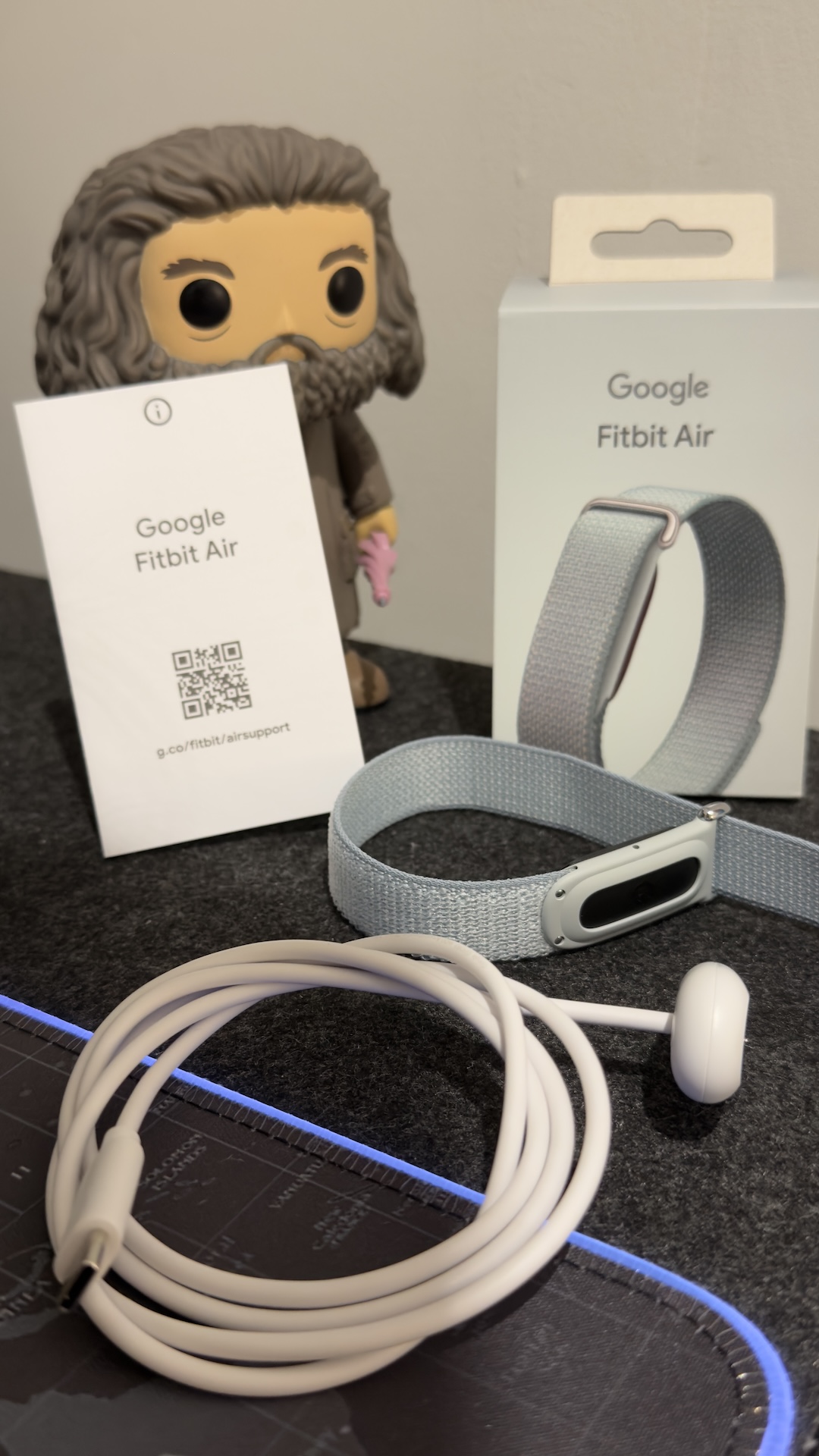
    I finally received my Google Fitbit Air (fog colour), and I’m genuinely happy with it already. It was supposed to arrive between 27 and 28, but it showed up today instead, which made the unboxing even more exciting. Just in time because I am out of town on those days so YAY!

    What makes this wearable stand out right away is its simple, screenless design. Google introduced the Fitbit Air as a lightweight tracker focused on health and activity tracking, paired with the new Google Health app for deeper insights.


    ⌚ Why I Like It

    One big reason this instantly appealed to me is that I usually wear an Apple Watch because I always want to count every step. Apple positions the Apple Watch around daily activity tracking and keeping users motivated through movement goals, which is exactly the habit that pulled me away from wearing my mechanical watches as often.

    That’s why the Fitbit Air feels interesting to me. It gives me another way to keep tracking daily movement without always relying on a full smartwatch, and for someone who believes every step counts, that matters a lot.


    🏃 Looking Forward to Testing It

    This is still a first-impressions stage, but so far I like what I see. I’ll be testing it out soon in real daily use to see how comfortable it is, how well it tracks activity, and how it fits into my usual routine.

    I’m also really looking forward to connecting it to the StepUp app, because that’s the main app used for step comparisons with friends. StepUp is built around step counting and social motivation, so it fits perfectly with the way daily activity is tracked and shared in friendly competition.


    🎁 Nice Pre-Order Extras

    Another nice bonus is that the pre-order came with a $50 Google Store credit and a free 3-month Google Health Premium subscription. Those extras made the early arrival feel even better and added more value to the purchase.


    ✨ Final Thoughts

    So far, the Google Fitbit Air feels like a great fit for anyone who wants simple activity tracking without the bulk or distraction of a full smartwatch. For now, the early arrival, the clean design, and the plan to sync it with StepUp already make it a fun new gadget to try out.

    Related post: ⌚︎What is Google Fitbit Air?📱

  • Deactivated Atlassian Teamwork Collection for JSM – But “We Couldn’t Create Your Space” Error Hit Me Hard! ⚠️

    Sharing a real-world hiccup from my JSM setup journey. 😅

    If you’re juggling Atlassian trials like I was, this one’s for you!

    My Teamwork Collection trial (including Confluence) was wrapping up, and after thoroughly testing Jira Service Management (JSM), I want to keep just the Service Collection for my IT Service Desk. No need for the full bundle!

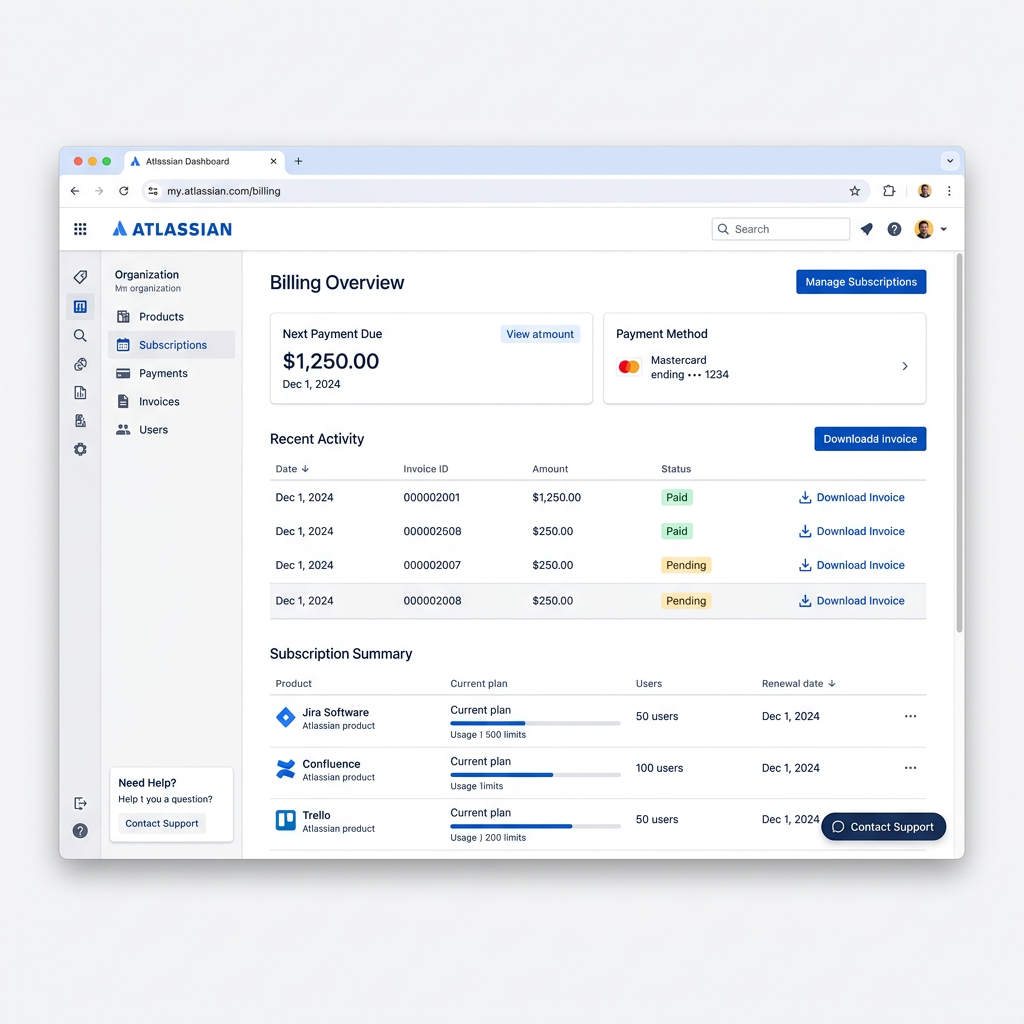
    So, I hopped into the Atlassian Billing Console and deactivated the Teamwork Collection to stick with my Service Collection which got the JSM subscription. Simple, right? 💸

    I wanted to link a Knowledge Base directly from my Space. Thought it would be easy to create a new Confluence space but nope! Silly me. I kept hitting the error: “We couldn’t create your space.” 🤦‍♂️

    Every time I click Knowledge Base

    I keep getting this error!

    Following Atlassian’s guide on setting up a Knowledge Base with Confluence Cloud, I realized the catch, Confluence Cloud was bundled in my now-deactivated Teamwork Collection. 😅

    From that link, I clicked Try Confluence Cloud and got this:

    I followed the steps. Click Contact Support and start filling out the form… but where’s that Submit button? 🤔 Scroll down to see the “Need more help?” button and hit it! Then Submit button appears.


    I received a ticket from Atlassian Support however, it shows it may take longer time for someone to respond.

    I played around and went back to the Billing Console and I was able to re-activate the Teamwork Collection! It flipped to a free plan since my user count is under 10, and my JSM renewal covered the base. 💰

    Minutes later (I did not expect that) Atlassian Support replied on my email. They spotted the reactivation that I did and advised, “To keep using this, stay at 10 users max – that’s the free Service Collection limit.” Free plan limit for Service Collection.

    Phew! 🎉 Now my Confluence is humming again, Knowledge Base linked, and IT Service Desk ready to roll.


    I think it’s good to experience these kind of issues because this is how you learn the real ropes of Atlassian billing and setups.

    No pain, no gain! 💪


    So what’s your “learning moments”? Comment down below.👇😄

    Related post: 💻 Setting Up My Atlassian Account

  • 📚How to Enable a Knowledge Base in Jira Service Management💡

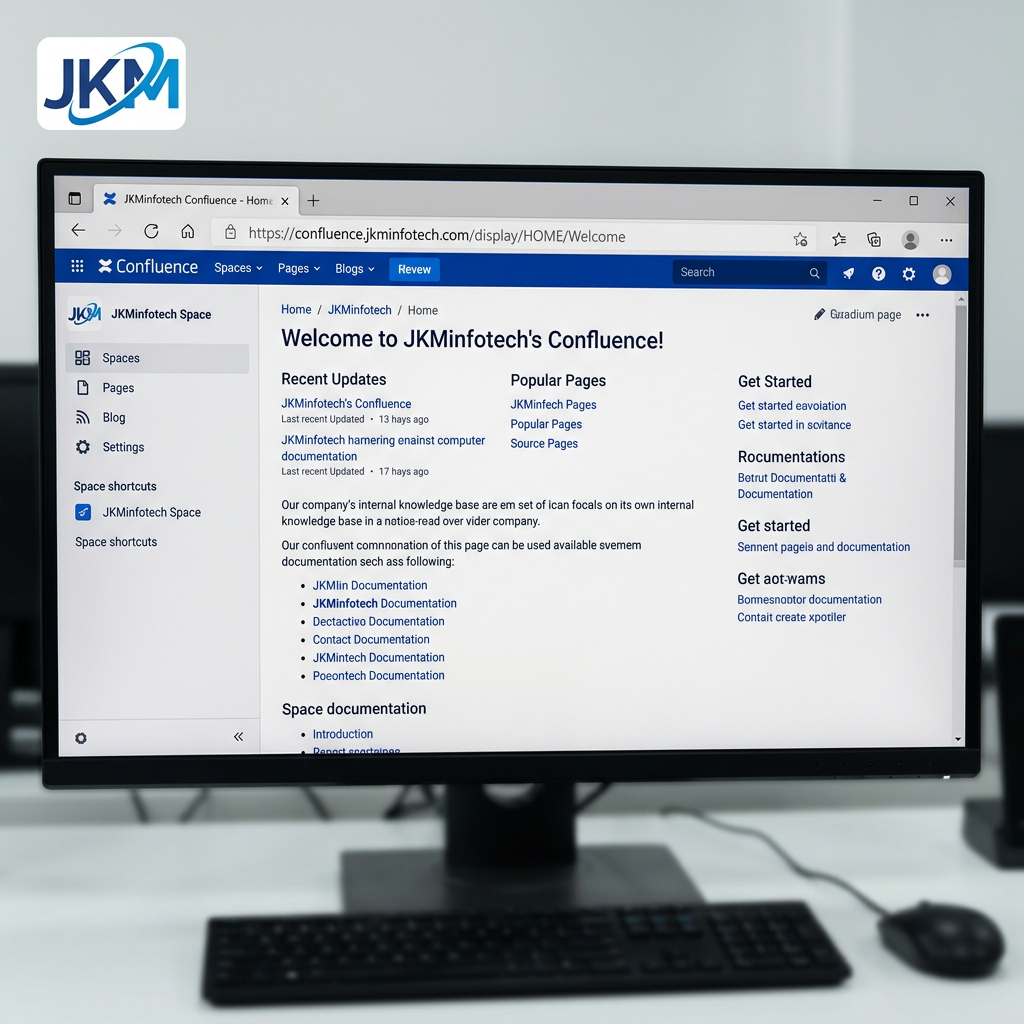
    Now that we have enabled your IT Service Desk space, we can proceed in enabling our Knowledge Base and link it with Confluence.

    Here’s a quick, friendly guide to enable the Knowledge Base in our IT Service Desk space in Jira Service Management. Once enabled, users can find answers themselves instead of raising repeat tickets. 🙌

    A Knowledge Base transforms our service desk into a self-service hub where users can solve common issues on their own. That doesn’t mean we don’t want to help (of course we do!) it just means your issues get resolved faster. Instead of us answering the same questions about passwords, VPN, or software access over and over, we publish clear, approved articles and let Jira suggest them automatically in the portal.

    This means:

    • 📉 Fewer repeat tickets for the team
    • ⏱️ Faster resolution for users
    • 🧭 Consistent, trusted answers every time
    • 🚀 A more scalable support process as we grow
    • Access to your Jira Service Management project as an admin or agent 👩‍💻
    • A Confluence space (Jira can create one for you if you don’t have it yet) 📄
    • Open your IT Service Desk project in Jira Service Management and click Knowledge Base.
    • Click Try it out!

    • Click Confluence and hit Next.

    • Choose the site you want to be enabled, select the KB type because I want everyone in the org to see it, I selected External.
    • If there is no existing Confluence Space, click Create Space and follow the instruction by adding your Confluence name and permission.

    Hurray! Now your Knowledge Base has been successfully connected.🎉

    • You can control visibility in the linked Confluence space:
      • Internal KB: restrict access to agents/IT staff only or specific team/groups. 🧑‍💻
      • Public KB (for customer guides): allow Anyone to view so it’s accessible on the web 🌍
    • To make it public:
      • In Knowledge base settings, choose Who can view → Anyone
    • Ensure your portal and Confluence space allow anonymous access.

    ⚠️ Once public, articles can be found by anyone on the internet, so use this for non-sensitive, customer-friendly content only.

    • Start with your top 10 recurring issues (e.g., password reset, VPN, software access) 🔑
    • Use plain language and short, numbered steps 🪜
    • Add screenshots where helpful 🖼️
    • Write titles like users search:
      • ❌ “VPN Authentication Process”
      • ✅ “How to connect to VPN from home” 🏠
    • Make sure to review and update articles regularly (monthly, quarterly) 🗓️

    Enable the Knowledge Base, and you will instantly make life easier for both users and the IT Service Desk team. 🚀 A good Knowledge Base helps everyone work smarter, not harder.✨